

Leaderboard
-
mlc3423
Members+2Points877Posts -
TheOrcKing
Moderators1Points26,520Posts -
fuzzy_bricks
Members+1Points3,454Posts -
chaozz
Members+27Points161Posts



Popular Content
Showing content with the highest reputation on 10/26/2025 in all areas
-
2 pointsInsiders Reward: 6607198 Retro Space Explorer (Releases Insiders Weekend (Nov 22-23) for unknown amount of points)2 points
-
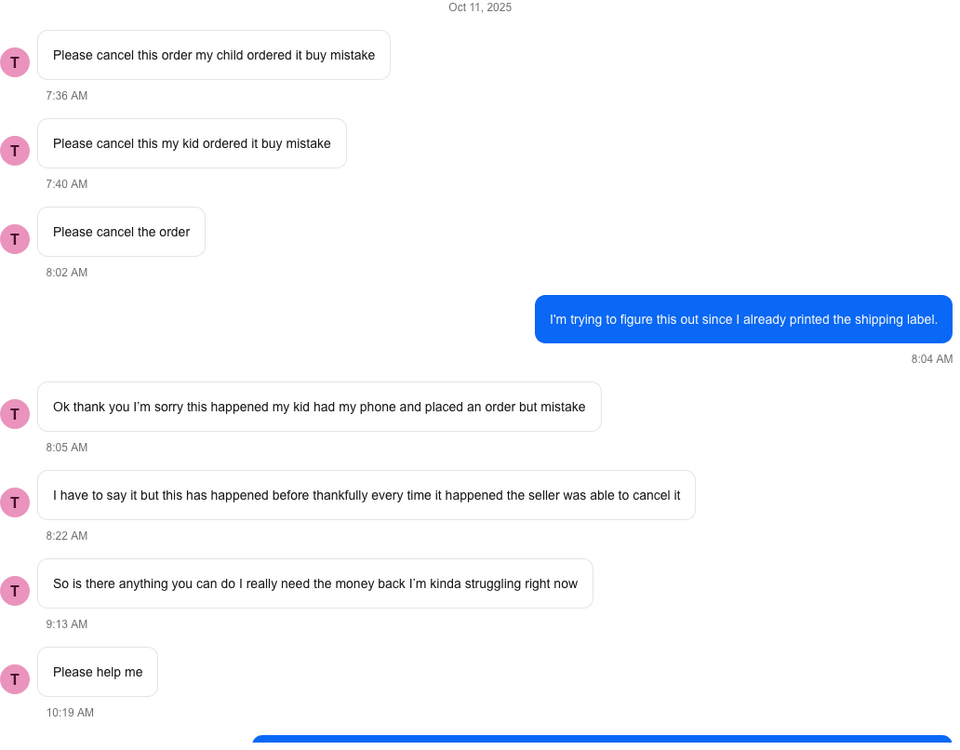
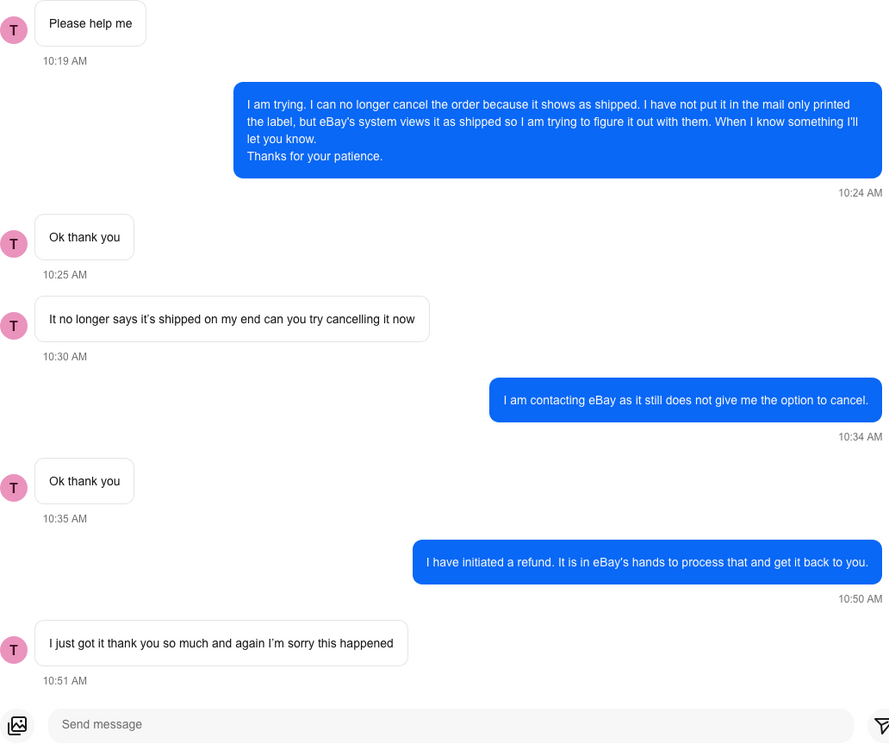
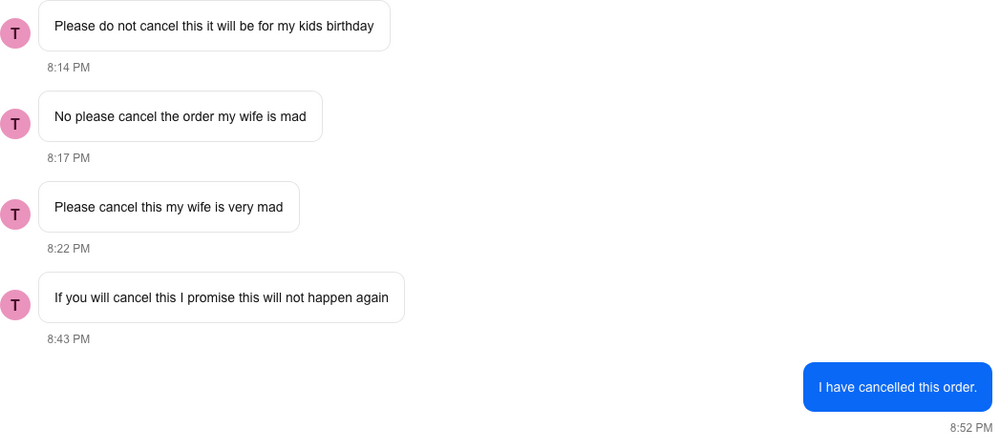
1 pointI ended up just initiating a refund and that basically worked the same as cancelling and everything seems to be sorted out. So the guy that did this ended up doing it again to me on a different set. I did not ship the second set before the cancellation request came in so I was able to cancel after the fruitcake finally made up his mind. The first two images are from the first transaction the third image is from the second. I knew the guy was a little antsy so I didn't cancel immediately, I should have let it go all night to see how many messages he would have sent. I added him to my blocked list after I set the last message. Second transaction, he submitted a cancellation request and then sent this message.
 1 point0 pointsAmazon is just catering to China, I jump on some of the webinars and that's all it is, Talking about sellers from China and how to make it easier for them to bring in cheap fake crap,0 points


