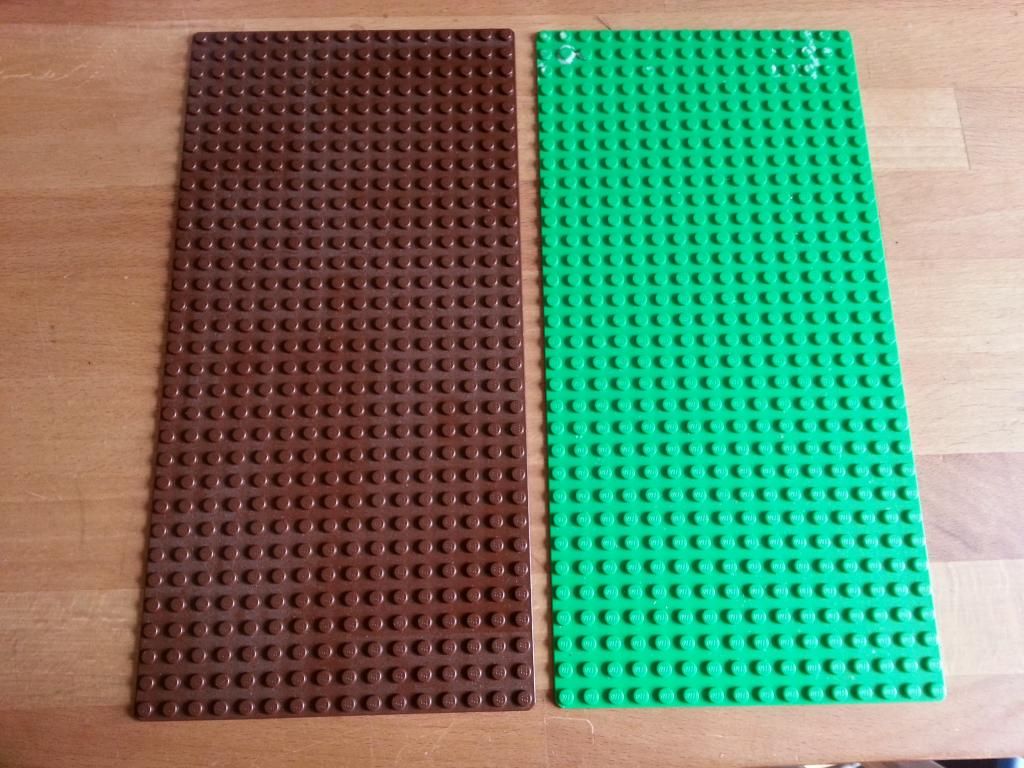
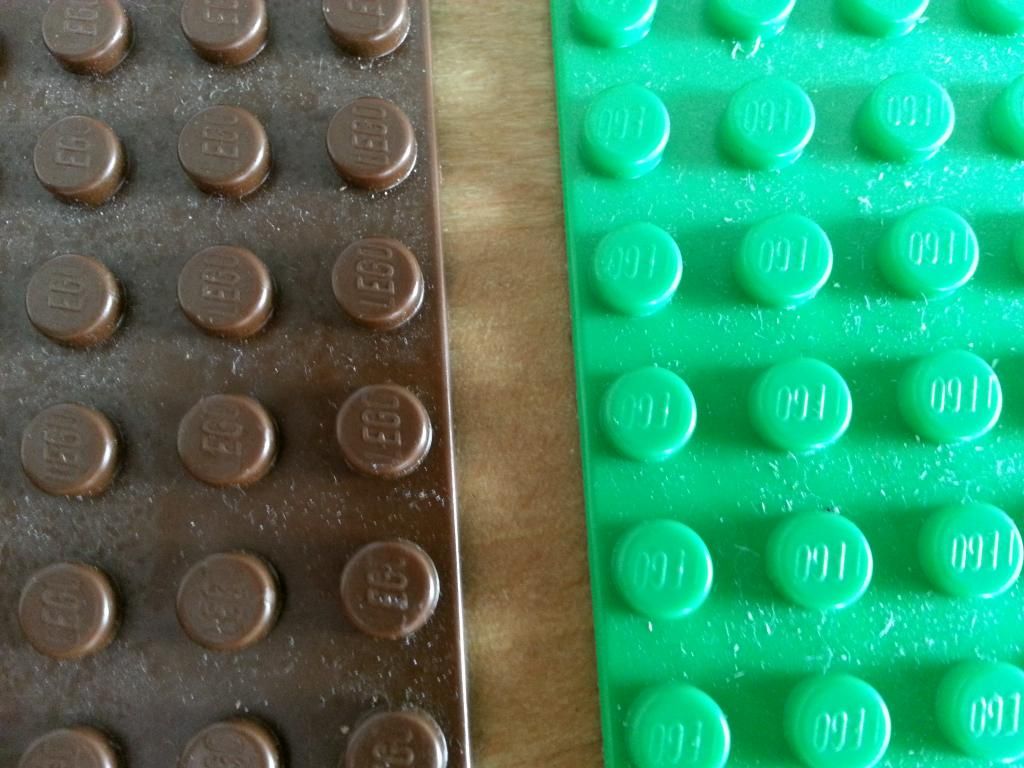
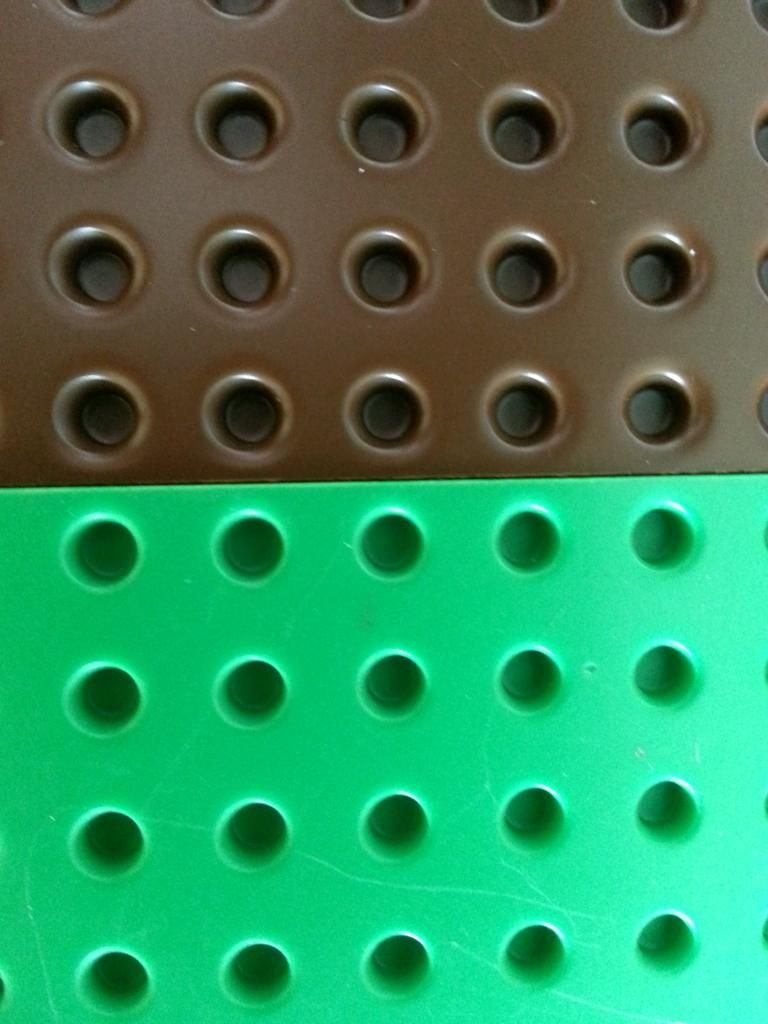
March 12, 201411 yr Hey guys. Digging I've found a 16x32 dark brown baseplate which has no id # on the back. Was wondering if anyone could shed some light on it for me.
March 12, 201411 yr Solution It is from set 3053 - Emperor's Stronghold from 1999. It is worth about $7. The part number is 3857
March 13, 201411 yr You can go to BrickLink, select "Catalog Items" under SEARCH at the top of the page, type in "16x32" into the text bar, press enter and it should come up with a list of baseplates matching that size like this. You can fine tune it even further by selecting "Parts" from the "-- All Item Types --" dropdown option. Just always be sure to select "Catalog Items" before searching for specific parts. Wow, I had forgotten all about the old samurai line. Awesome find!I loved the classic Ninja theme myself. Only wish I had more of them.
March 13, 201411 yr I loved the classic Ninja theme myself. Only wish I had more of them.These came out about the time my dark ages started. I wonder if these where in some way the genesis of Ninjago?


Hey guys. Digging I've found a 16x32 dark brown baseplate which has no id # on the back. Was wondering if anyone could shed some light on it for me.