

- Replies 1.2k
- Views 324.5k
- Created
- Last Reply
Top Posters In This Topic
-
Pseudoty 179 posts
-
eliminator 46 posts
-
BricksBrotha 44 posts


Most Popular Posts
-
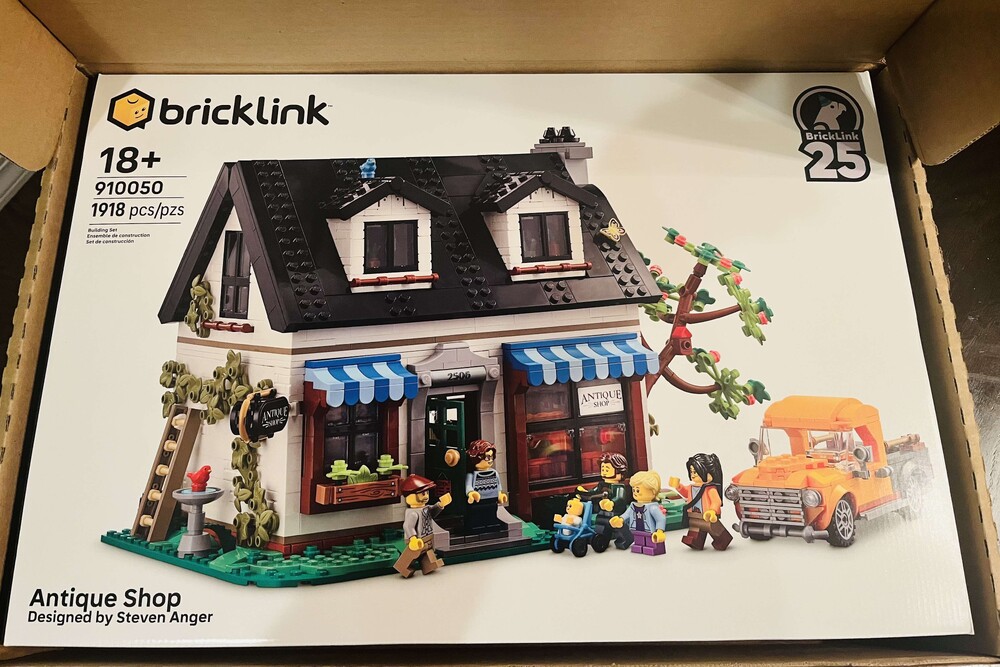
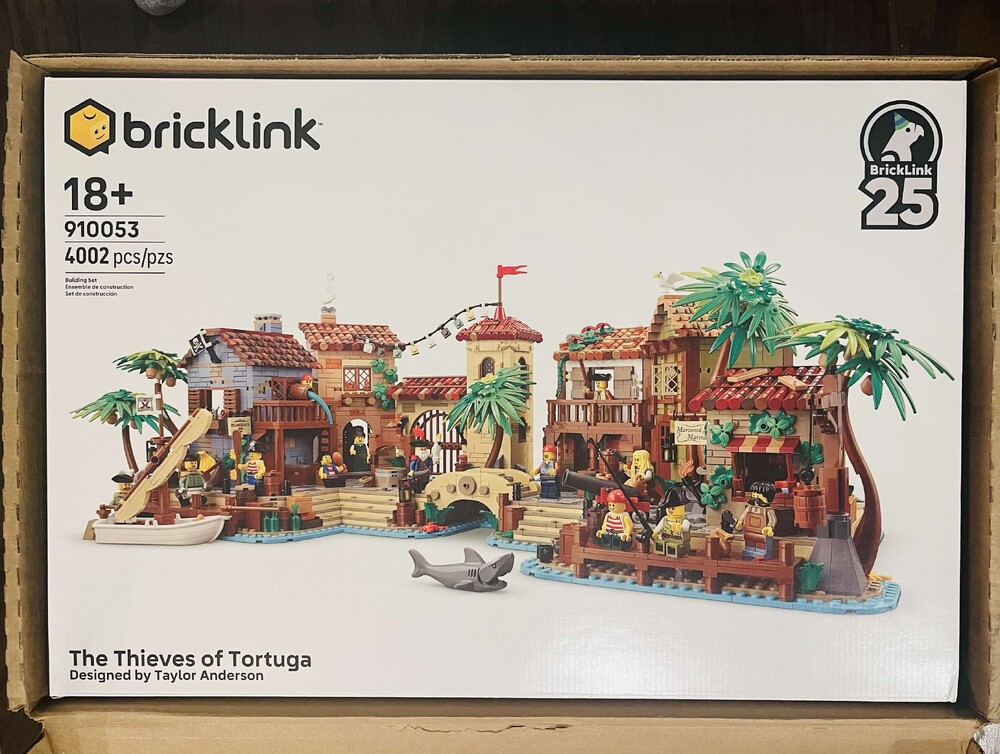
https://www.lego.com/cart?product=910033 Old Train Shed https://www.lego.com/cart?product=910029 Mountain Fortress https://www.lego.com/cart?product=910032 Parisian Street https://www.lego.com/cart?pr
-
"if this is crowfunding it has to be made available, otherwise it should have been called a lottery" has no idea how a lottery works, apparently. "Scalpers are the worst kind of humans we ha
-
these should be the links, fellas: The Art of Chocolate: https://www.lego.com/cart?product=910039 Harbormaster's Office: https://www.lego.com/cart?product=910040 Camping Adventure: https://www



Posted Images


Featured Replies
Recently Browsing 0
- No registered users viewing this page.
A Report by and on the site "Brick Fanatics" Talks of launching failed Ideas sets through BrickLink or an ADP second wave. Sounds like a survey going. Didn't yet read too much into it. Sounds interesting to me for sure though.