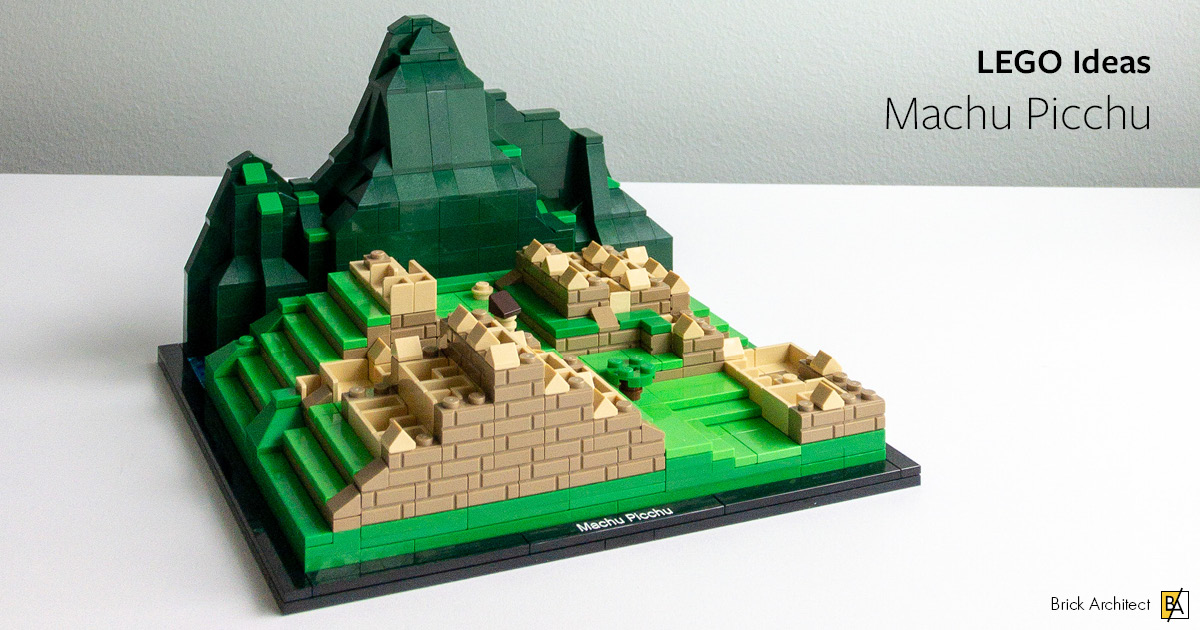
I had the pleasure of building an intricate LEGO Ideas model of Machu Picchu, built in the style of the official LEGO Architecture sets. The model was designed by Diego Baca, a proud Peruvian who wanted to help LEGO enthusiasts learn more about the globally recognized UNESCO World Heritage site.
Not only did Diego build the model both digitally and using LEGO bricks, he also created a beautiful instruction manual in the style of official LEGO Architecture sets, and a matching glossy box. I had a lot of fun building the model using the easy-to-follow directions.
The completed model is immediately recognizable, and looks great next to the official sets, especially the recent Great Wall set which also features historic architecture in a mountainous landscape.
You can post now and register later.
If you have an account, sign in now to post with your account.
Note: Your post will require moderator approval before it will be visible.


I had the pleasure of building an intricate LEGO Ideas model of Machu Picchu, built in the style of the official LEGO Architecture sets. The model was designed by Diego Baca, a proud Peruvian who wanted to help LEGO enthusiasts learn more about the globally recognized UNESCO World Heritage site.
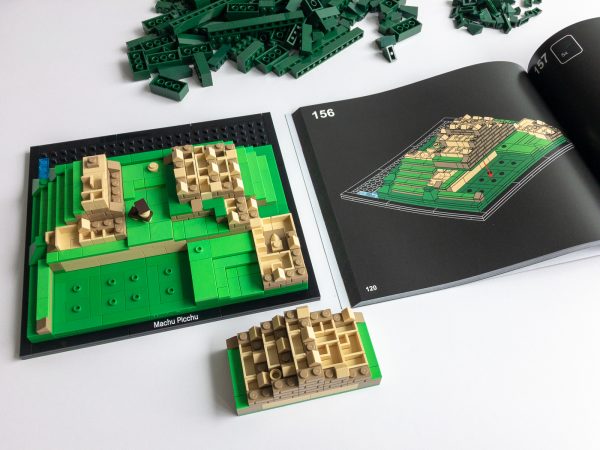
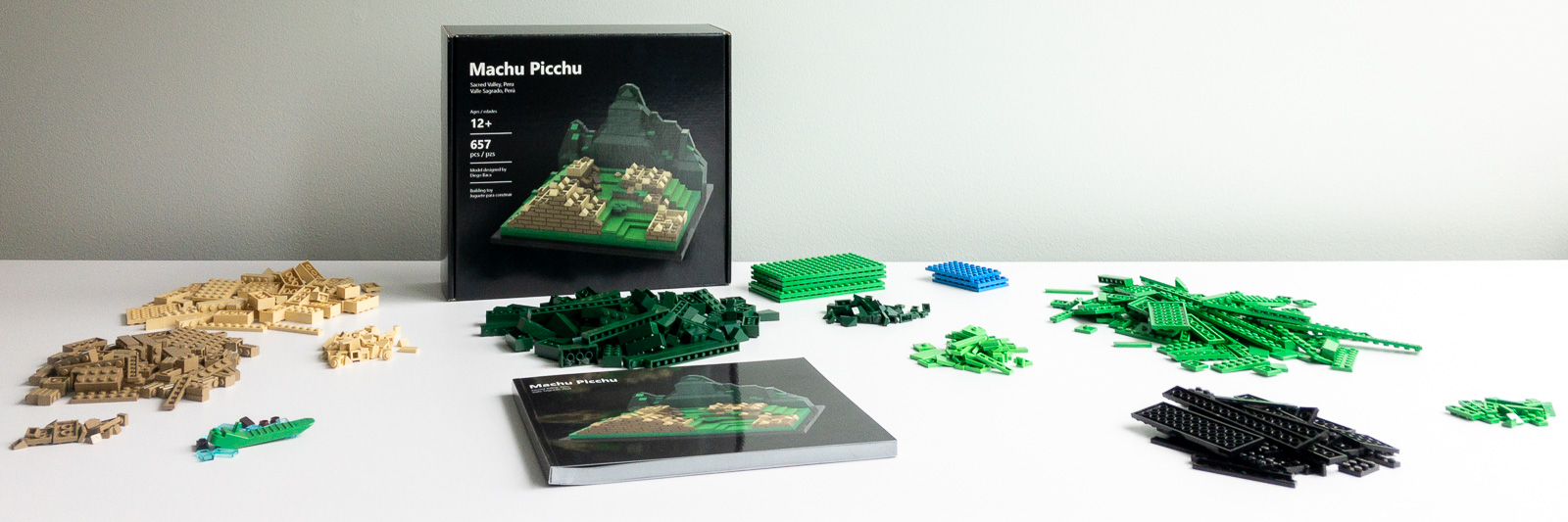
Not only did Diego build the model both digitally and using LEGO bricks, he also created a beautiful instruction manual in the style of official LEGO Architecture sets, and a matching glossy box. I had a lot of fun building the model using the easy-to-follow directions.
The completed model is immediately recognizable, and looks great next to the official sets, especially the recent Great Wall set which also features historic architecture in a mountainous landscape.
For an longer, in-depth review of the set and an interview with Diego about his project, you can read the whole article at:
https://brickarchitect.com/2019/lego_ideas_machu-picchu-diego-baca/
If you want a chance to build it, be sure to vote for it on the LEGO Ideas site!
Sincerely,
—Tom
Edited by henrysunset