

Leaderboard
-

Jeff Mack
Administrators5Points7,591Posts

Popular Content
Showing content with the highest reputation on 08/18/2017 in Blog Articles
-
5 points
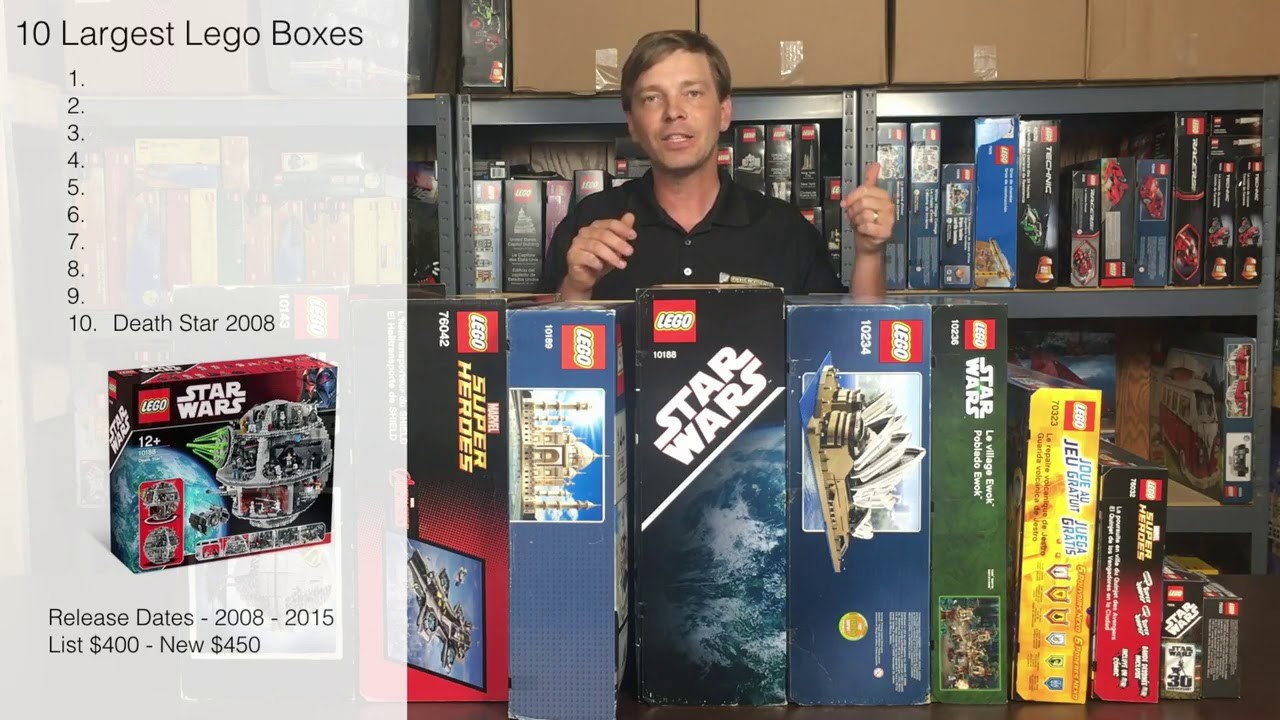 While I am getting closer to releasing a long overdue update to BrickPicker, now is a good time to release some content that I was hoping to release with the updated site. @belljohn has been talking with Ed and I for a very long time and has spent a lot of time in creating a series of Brickvesting videos that he is happy to share on the BrickPicker YouTube Channel. I am hoping to see this expand this into a bunch of different topic series and welcome any of you that are interested in working on some videos to reach out to me and we can work on it. Set reviews, investing tips, set builds, etc. It's not easy to speak for ~15 minutes, but Brook does an amazing job covering this topic. We will be publishing more videos soon from belljohn. We hope you enjoy it. Who knows, maybe soon you will see Ed showcase his amazing words of wisdom in video. That will be a real treat.5 points